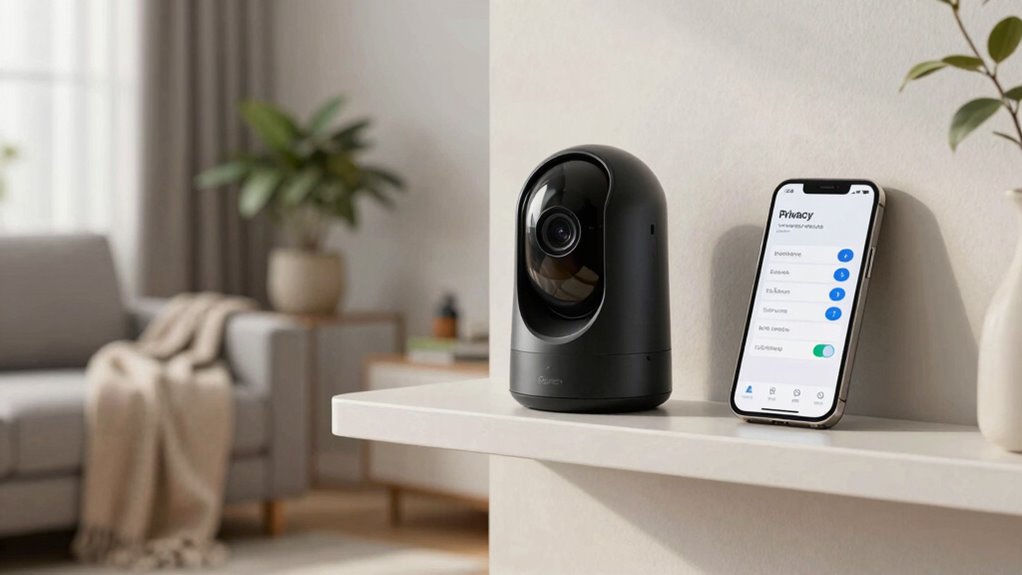
Start by changing your smart camera’s default passwords to strong, unique ones and enable two-factor authentication if available. Review and adjust privacy settings to limit sharing and remote access. Disable features you don’t need, like microphone or remote viewing, to reduce vulnerabilities. Regularly check for firmware updates and security patches to keep your device protected. Managing access and staying informed about updates help secure your home effectively—keep going to learn even more ways to stay safe.

Get your wardrobe favorites delivered free with Prime
- Fast, free delivery on millions of items
- Prime Video, Amazon Music and more included
- Member-only deals all year
Key Takeaways
- Adjust privacy settings to limit data sharing and disable unnecessary features like remote access and sharing.
- Change default passwords immediately and enable two-factor authentication for added security.
- Review and revoke any unnecessary access permissions or sharing links regularly.
- Enable end-to-end encryption and choose local storage options when possible.
- Keep firmware and security settings updated to address vulnerabilities promptly.
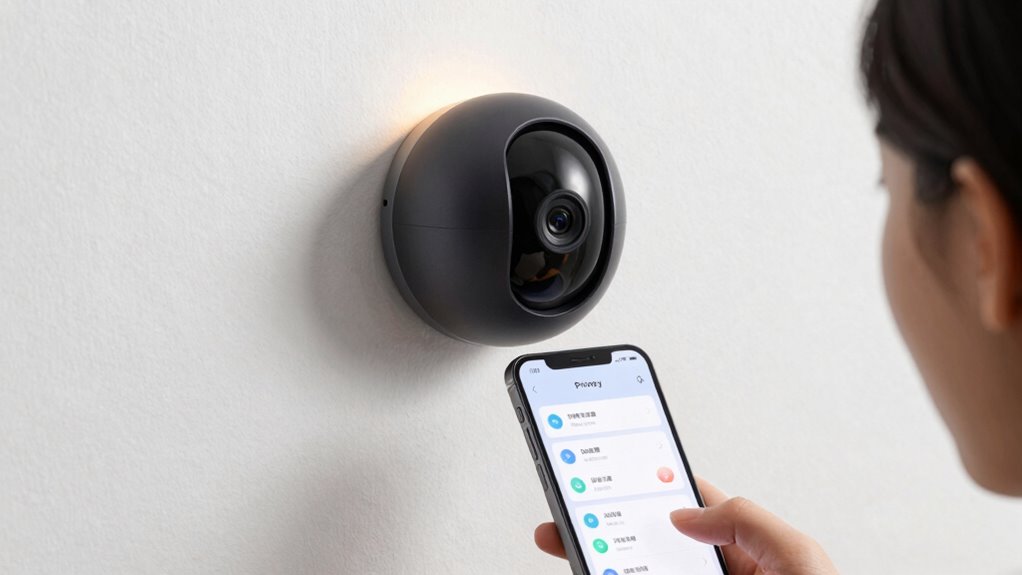
Ever wondered how to protect your privacy while using smart cameras? The first step is to review and adjust your privacy settings carefully. Many smart cameras come with default configurations that may not prioritize your privacy, so it’s crucial to customize them to suit your comfort level. Start by disabling any features that aren’t necessary, such as remote access or sharing options, to reduce potential vulnerabilities.
Next, focus on how your footage is stored. Cloud storage offers convenience, but it also introduces privacy concerns if the cloud provider isn’t secure. Confirm that your chosen service uses strong data encryption both during transfer and at rest. Data encryption is essential because it scrambles your footage so that unauthorized viewers can’t interpret it if they intercept the data. Verify that your camera’s manufacturer provides end-to-end encryption, which guarantees that only you can access the unencrypted videos. If available, opt for local storage options, like SD cards, to keep control entirely within your home network and reduce reliance on third-party servers.
Password management is another critical aspect. Change default passwords immediately and create strong, unique ones for your camera accounts. Avoid using easily guessable information like birthdays or simple sequences. Enable two-factor authentication if your device supports it. This adds an extra layer of security, making unauthorized access much harder even if someone gets hold of your password.
Additionally, review who has access to your camera feeds. Many smart cameras allow multiple users or guest access; make sure you only share access with trusted people. Regularly audit these permissions and revoke any that are no longer necessary. This helps prevent unintended leaks or misuse of your footage. To further enhance security, consider monitoring activity logs to detect any suspicious access attempts. Incorporating security best practices can significantly reduce the risk of breaches and unauthorized viewing. Moreover, staying informed about recent security vulnerabilities related to your device model can help you apply relevant patches promptly. Staying updated on security patches is vital to close known vulnerabilities and strengthen your device’s defenses.
Finally, check for firmware updates regularly. Manufacturers often release updates that patch security vulnerabilities or improve privacy features. Keeping your device’s firmware current ensures you benefit from the latest security enhancements. Alongside this, familiarize yourself with the privacy policies of your camera’s manufacturer and cloud storage provider to understand how your data is handled and what rights you retain.
As an affiliate, we earn on qualifying purchases.
Frequently Asked Questions
Can I Disable Audio Recording on My Smart Camera?
Yes, you can disable audio recording on your smart camera. To do this, access your device’s privacy control settings through the app or web portal. Look for options related to audio or microphone access and turn off or disable audio recording. This guarantees your privacy is protected by preventing the camera from capturing sound, giving you greater control over your privacy. Always review these settings regularly to maintain your preferred privacy level.
How Do I Delete Stored Footage Securely?
To delete stored footage securely, start by accessing your camera’s app or web portal. Use strong user authentication to log in, then locate the footage you want to delete. Before removing it, guarantee data encryption is active to protect your data during the process. Delete the files, and consider emptying the trash or backup folders to prevent recovery. Regularly update your security settings to maintain ongoing privacy.
Are There Settings to Limit Access for Guests?
Think of your smart camera as a house with a guest room—you wouldn’t leave the door wide open, right? To limit guest access, explore your camera’s permission controls or guest access settings. You can usually set specific times or restrict certain features for visitors. This way, you protect your privacy while still welcoming guests, giving you peace of mind knowing your footage stays secure and only accessible to trusted individuals.
Can I Set Different Privacy Levels for Different Areas?
Yes, you can set different privacy levels for specific areas using area-specific controls and privacy zone customization. You simply select the zones or areas you want to modify, then adjust the privacy settings accordingly. This way, you can keep certain spaces private while monitoring others. Make sure to review each zone’s settings carefully, so you maintain the desired level of privacy and security across your smart camera system.
How Do I Update the Firmware for Better Security?
Coincidentally, updating your firmware is one of the best ways to strengthen your smart camera’s security. To do this, navigate to your device’s settings and look for the firmware update option. Regularly check for updates, as they include essential security patches that protect your device from vulnerabilities. Installing firmware updates guarantees your camera stays secure, and applying security patches keeps your privacy safe from potential threats.
Conclusion
By adjusting your privacy settings first, you take control of your personal space and safeguard your sensitive information. It’s a simple step that makes a big difference in protecting your privacy. So, aren’t your peace of mind and security worth a few quick changes? Take a moment now to review and customize your smart camera settings—because your privacy shouldn’t be an afterthought. After all, isn’t your safety worth it?
Halloween Picks
halloween
As an affiliate, we earn on qualifying purchases.